← MicroPython on Pi Pico and Projects
Project 1.2
Project 1.2: Flashing MicroPython with Thonny
Get MicroPython running on your Pico for the first time, using Thonny
Checklist (covers 1.2 & 1.3) Slides (covers 1.2 & 1.3)
Check whether you even need this
Open Thonny and look at the bottom-right corner of the window. If it already shows MicroPython (Raspberry Pi Pico) with your Pico connected, MicroPython is already installed. Skip ahead to Project 1.3.
If it doesn’t, or your Pico shows up as a plain removable drive instead, keep going. This is likely the first time your specific Pico has had MicroPython put on it.
Put your Pico into BOOTSEL mode
Hold down the BOOTSEL button on top of your Pico. While still holding it down, plug your Pico into the computer with a micro USB cable. Count to three, then let go of the button. Your Pico should appear as a plain removable drive, not as a MicroPython device yet.
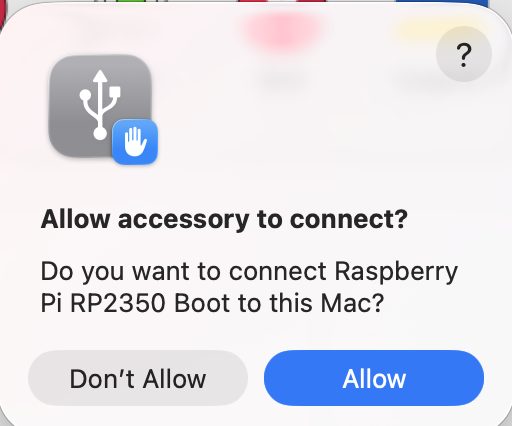
The first time you do this, your Mac will ask whether to allow the accessory to connect. Click Allow.
Install MicroPython from inside Thonny
With your Pico in BOOTSEL mode, use Thonny’s own installer rather than downloading anything by hand:
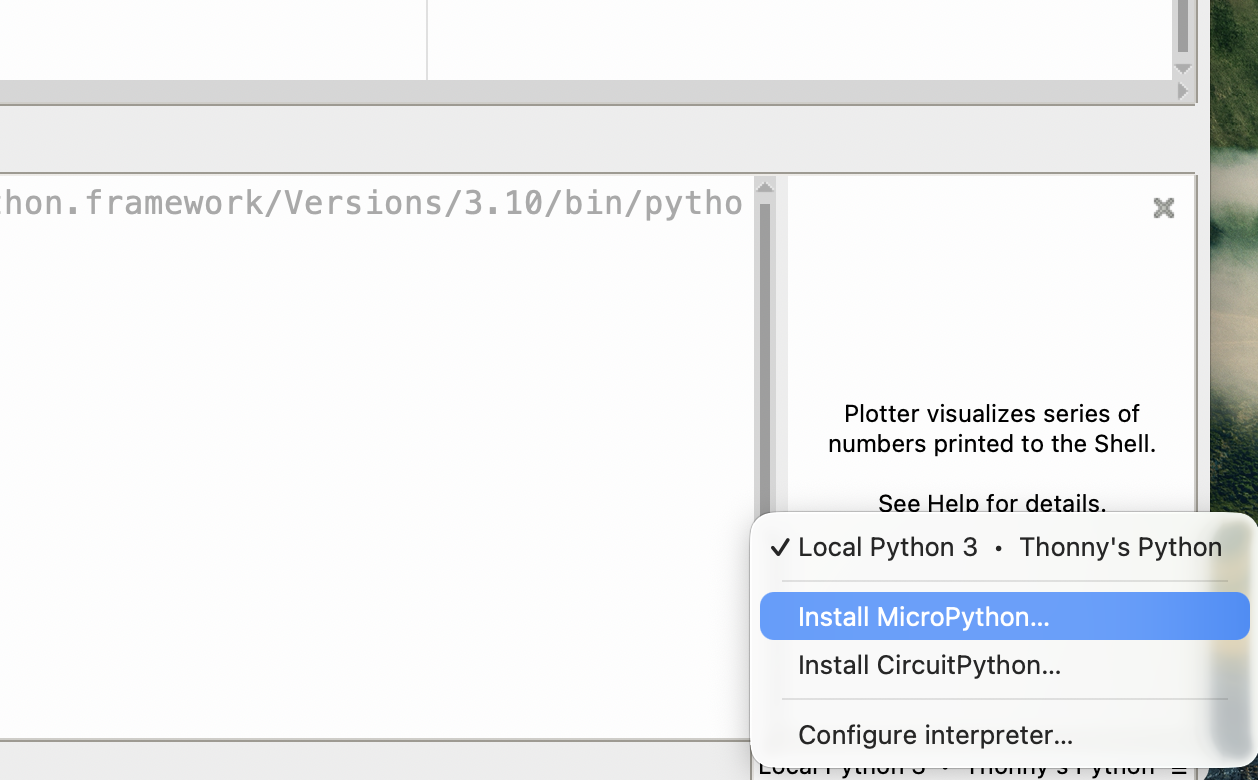
- Click the interpreter indicator in Thonny’s bottom-right corner.
- Look for an option to install or update MicroPython on the device.
- Choose the variant that matches your board exactly: Raspberry Pi Pico 2 W, not plain Pico 2. Picking the wrong variant is the most common mistake here.
- Click Install, and wait. Don’t unplug your Pico while this runs.
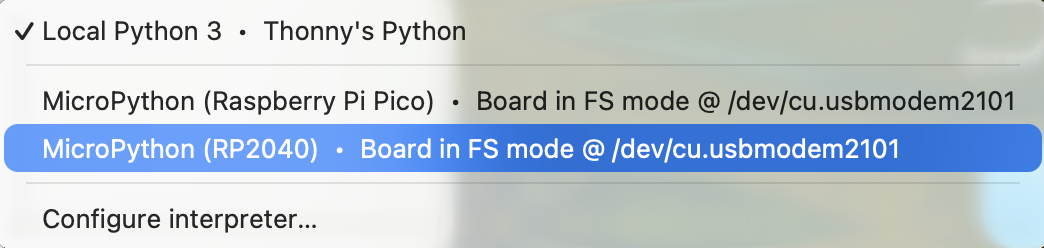
When it finishes, Thonny should reconnect automatically and show MicroPython (Raspberry Pi Pico) in the bottom-right corner. If it doesn’t, click the interpreter indicator again and pick the MicroPython entry for your board from the list.
Once Thonny shows MicroPython connected, move on to Project 1.3.