← MicroPython on Pi Pico and Projects
Project 1.3
Project 1.3: Files on Your Pico, and Your First REPL Commands
See where your code actually lives, save a script to your Pico, and control an LED straight from the REPL
This is for after Project 1.2 has MicroPython running on your Pico and Thonny connected to it.
Reconnect to your Pico
If you just restarted Thonny, it won’t be connected to your Pico yet. Click the interpreter indicator in the bottom-right corner and choose the MicroPython entry for your board.
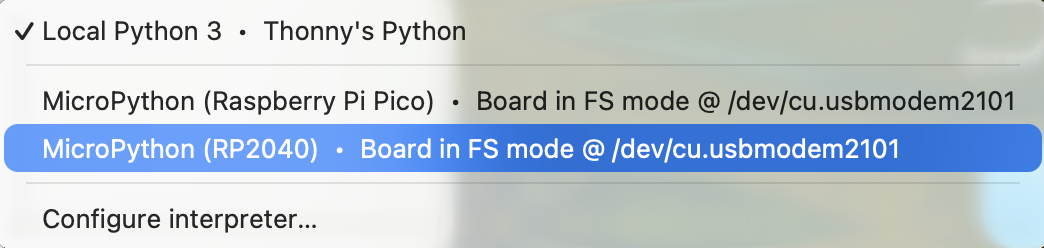
Two places your files can live
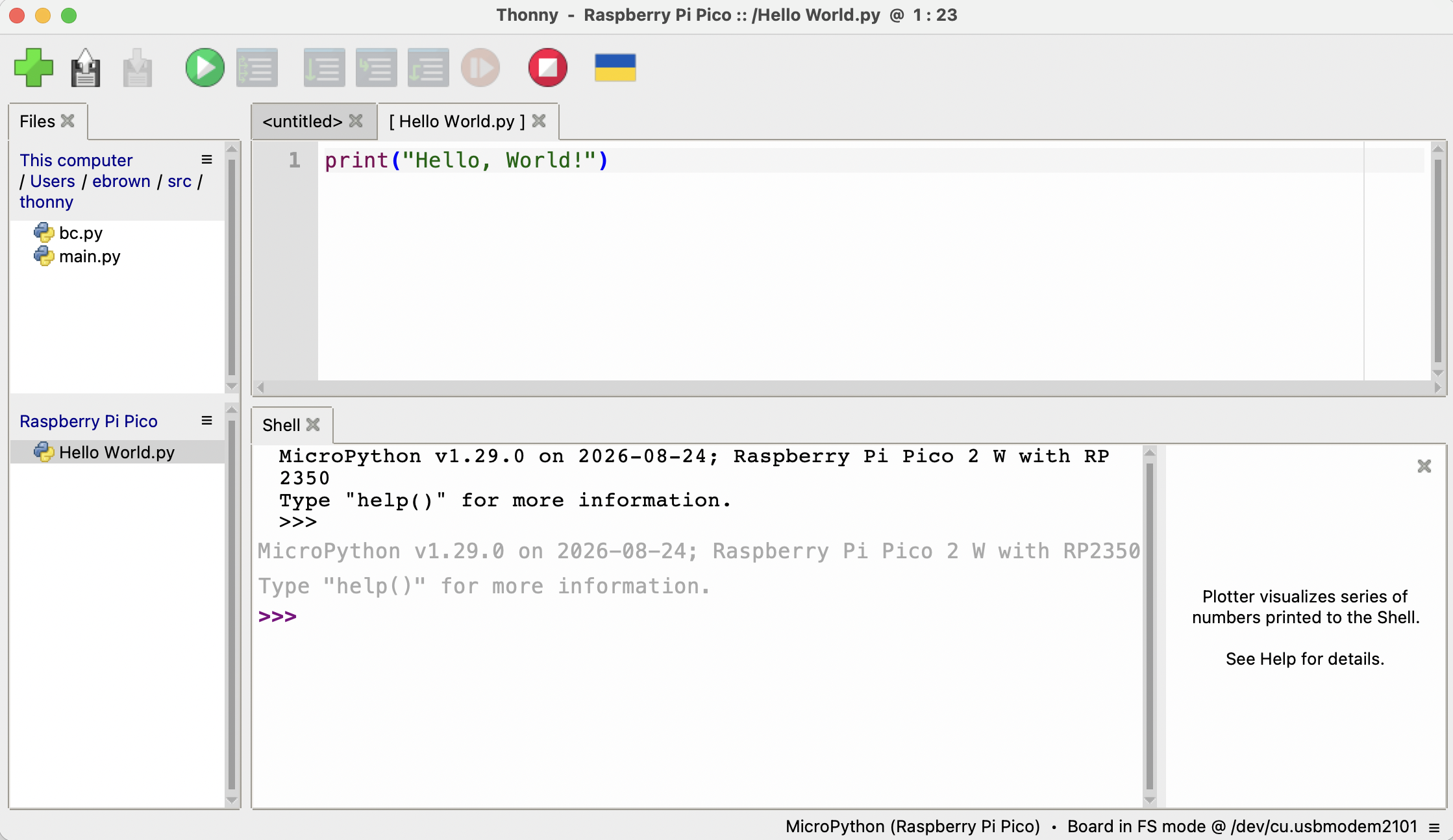
Look at the panel on the left side of Thonny’s window. It’s split into two sections:
- This computer, showing folders and files on the Mac you’re sitting at
- Raspberry Pi Pico, showing files stored on your Pico itself
These are two completely separate storage devices. A file sitting in This computer exists only on this one Mac; a file sitting in Raspberry Pi Pico exists on the board, and stays there even after you unplug it and walk away. Your three-LED circuit is wired to the Pico, not to this Mac, so any program that’s going to control your LEDs has to end up living on the Pico.
Save a script onto your Pico
Type this short program into a new script:
print("Hello, World!")
Save it with File > Save As. Thonny will ask where to save it first:
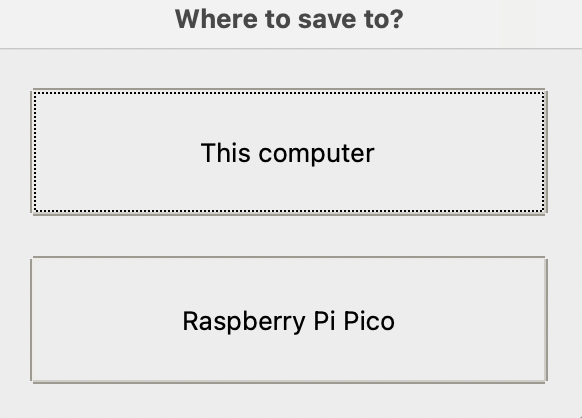
Choose Raspberry Pi Pico, not This computer, then give it a name. Click the Run button. You should see Hello, World! appear in the Shell below, and your new file should now show up under Raspberry Pi Pico in the file panel, not under This computer.
Try commands directly in the REPL
So far, every program has meant writing a script, saving it, and clicking Run. There’s a faster way to try things out: typing directly into the Shell, the panel where you saw Hello, World! appear a moment ago. This is also called the REPL, for read-evaluate-print loop: each line runs the instant you press Enter, with no Save and no Run button.
Click in the Shell, next to the >>> prompt. Type each line below one at a time, pressing Enter after each one and reading what happens before you type the next line. Don’t paste a whole block in at once, you’d miss the point: the REPL’s whole value is seeing each line react immediately, on its own.
import machine is loading a library that’s already there
import machine
Nothing prints. That’s normal: a successful import is silent. machine is a built-in library: it shipped as part of the MicroPython firmware you installed onto your Pico back in Project 1.2, so there’s nothing to download or install here, just a name to load.
Look inside a library before you use it
dir(machine)
This prints every name machine defines, all on one crowded line. Skim it. You’ll spot 'Pin' in there, that’s the one you’re about to use, along with others you haven’t met yet (ADC, I2C, Timer, and more). dir() works on any library and is a quick way to see what’s actually available, instead of guessing.
machine.Pin.OUT is just a number with a readable name
print(machine.Pin.OUT)
print(machine.Pin.IN)
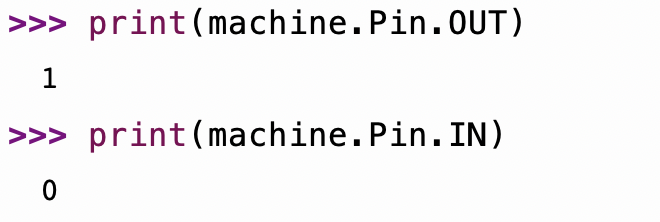
machine.Pin.OUT isn’t a special keyword, it’s a plain integer, 1, that machine.Pin has agreed to treat as “output mode.” machine.Pin.IN is just 0, meaning “input mode.” You could write machine.Pin(13, 1) and it would work exactly the same way as machine.Pin(13, machine.Pin.OUT), just without a reader-friendly name for that 1. You’ll use the bare number yourself in a moment.
Create a Pin for the onboard LED
led = machine.Pin("LED", machine.Pin.OUT)
That line alone doesn’t light anything up yet, it just sets the pin up as an output. Before you test it, create a second Pin for one of your own wired LEDs.
Create a Pin for one of your own LEDs
Check your Project 1.1 Notes page for the GPIO pin number you recorded for one of your wired LEDs. This time, call it myled, and use the bare number 1 instead of machine.Pin.OUT, just to prove to yourself they really do mean the same thing:
myled = machine.Pin(13, 1)
Use whichever pin number you actually wired, 13, 14, or 15, not necessarily 13.
Turn each LED on, then off
Now light up the onboard LED:
led.value(1)

Your Pico’s onboard LED should light up the moment you press Enter on that line.
led.value(0)
And now your own LED:
myled.value(1)
myled.value(0)
A shortcut: .toggle()
Typing .value(1) then .value(0) means you have to keep track of which state the LED is already in. .toggle() does that bookkeeping for you: on becomes off, and off becomes on, whichever it currently is.
myled.toggle()
Run that line a few times in a row, pressing Enter after each one, and watch the LED flip every time.
Pausing on its own: import time
Pressing Enter between each toggle works, but your Pico can pause by itself instead.
import time
Another built-in library, this one for anything to do with time.
time.sleep(5)
Your Shell will sit still, with no new >>> prompt, for five full seconds before it responds again. sleep() takes a number of seconds to wait, and does nothing else.
myled.toggle()
Once you’ve tried the challenge, or gotten stuck on it, move on to Project 1.4, where you’ll build this same program step by step.