← MicroPython on Pi Pico and Projects
Project 1.1
Project 1.1: Wiring Three LEDs
Build a three-LED circuit on your breadboard, by hand
Today you’re building real hardware: no simulator, no code yet, just a breadboard, some wire, and your own hands. Your Pico is already seated in your breadboard. Read through this whole page once before you touch anything, so you know where you’re headed.
If you want to double check a physical pin number for yourself, Appendix B, Pinout guide has the full reference.
Wire color and your breadboard
You’ll cut and strip your own 22-gauge solid wire instead of using pre-made jumper wires. Jumper wires use Dupont connectors, which are famously fragile and pull loose easily, and a board full of them never looks as neat as one wired by hand. Neatness counts here for a real reason: a wiring harness that looks careful is also one that’s easy to debug, and today’s build doubles as a class neatness competition. More on judging from your teacher.
Use color on purpose:
- Red wire only for 3V3 power
- Green wire only for ground (GND): that’s the ground color in this classroom, always
- White wire for every signal wire, connecting to a GPIO pin
This isn’t just tidiness. When something doesn’t work, the first thing you or a neighbor will check is whether a wire’s color matches what it’s actually carrying.
Power your breadboard
Run three wires from your Pico before you build any circuit:
- Physical pin 36 (3V3 OUT) to a rail, with a red wire
- Physical pin 38 (GND) to a separate rail on that same side of the board, with a green wire
- Physical pin 18 (GND) to a rail on the other side, the same side as GP13, GP14, and GP15, with a green wire
Call the first one your power rail and the second one your main ground rail: together, they’re what you’ll use for the LED circuit. Call the third one your spare ground rail. You won’t need it for this circuit, but it’s wired and ready for later.
Finding the cathode, even after you cut the legs
You’ll trim each LED’s legs short for neatness, which means you can’t rely on “the longer leg is the anode” once they’re cut to match. Find the cathode a different way instead, using the LED itself rather than its legs:
- The LED’s plastic case has a flat edge on its rim. That flat edge marks the cathode side, no matter how short the legs are cut.
- Look closely through the dome of the LED. Inside, you’ll see two small metal supports; the larger one connects to the cathode.
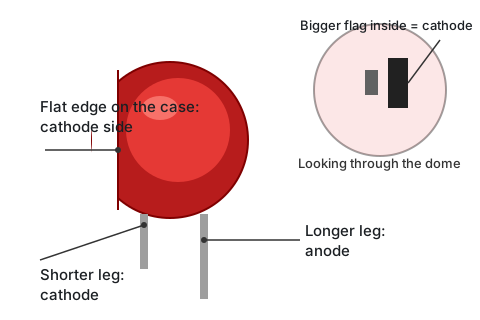
Before you cut, check that both of these line up with the longer leg, so you trust them once the legs are trimmed and match.
Build the LED circuit
You’ll need 3 LEDs and 3 resistors (330 Ω, or 220 Ω if your LEDs look too dim). If your resistors aren’t labeled with a value you can read directly, Chapter 3’s guide to reading resistor colour codes covers how to work it out from the colored bands. Each LED gets its own resistor and its own GPIO pin: physical pins 17, 19, and 20, which are GP13, GP14, and GP15. Trim both the LEDs’ legs and the resistors’ leads short, the same way, so everything sits flat and neat against the board.
For each of the three:
- Place a resistor from your main ground rail to an open strip on the breadboard.
- Place the LED so it bridges the center gap, with its cathode (flat edge on the case) on that same strip as the resistor.
- Run a white wire from the LED’s anode, on the other side of the gap, to GP13, GP14, or GP15.
Use red for all three LEDs in this circuit.
If it would help to see why the resistor matters, The Water Analogy is an interactive page that walks through voltage, current, and resistance as water pressure, flow, and a narrow pipe.
Get it signed off
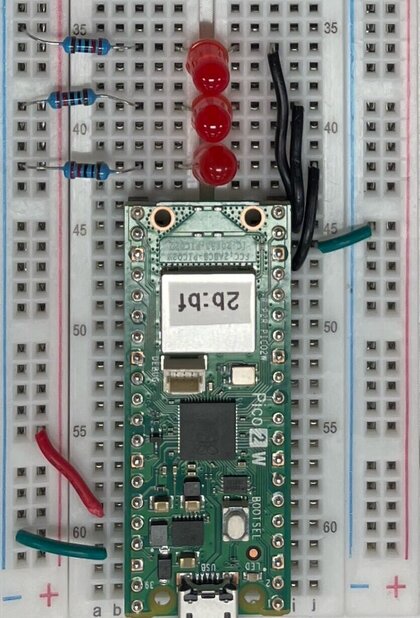
Once your three LEDs are wired, compare your breadboard to the exemplar at the front of the room (and to the photo above). Ask a neighbor to check it against the exemplar first. Once they agree it matches, call a teacher over for the real sign-off. Keep your Pico unplugged until then, even if you’re confident it’s right.